Lesson 4 of 9
Navigation and Pages
This tutorial will show you how to create a web application with multiple pages, and add page navigation to let your users transition between available…
2 min readThis tutorial will show you how to create a web application with multiple pages, and add page navigation to let your users transition between available pages.
You can create any number of pages inside an application. The Home Page of your application will be the first page that is automatically generated when the application is created. The Home Page will have an icon next to it to signify this property on the Pages interface. The Home Page is essentially the landing page for your application, and will be the first page your users see when they access your application.
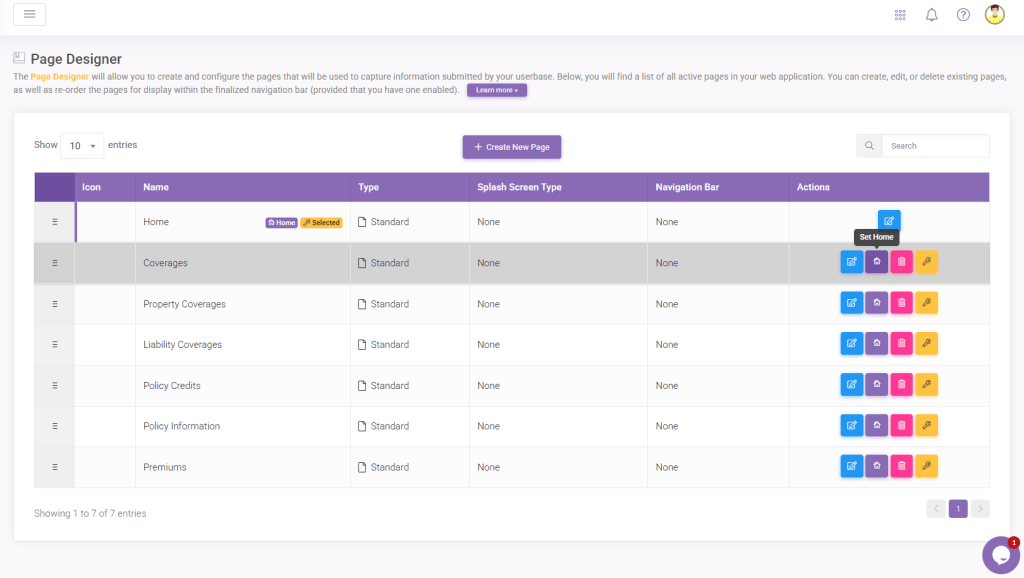
You can create additional pages by clicking the Add New button on the bottom of the Pages interface. To set one of the other pages as your Home Page, simply hover over the item and click on the Home button.
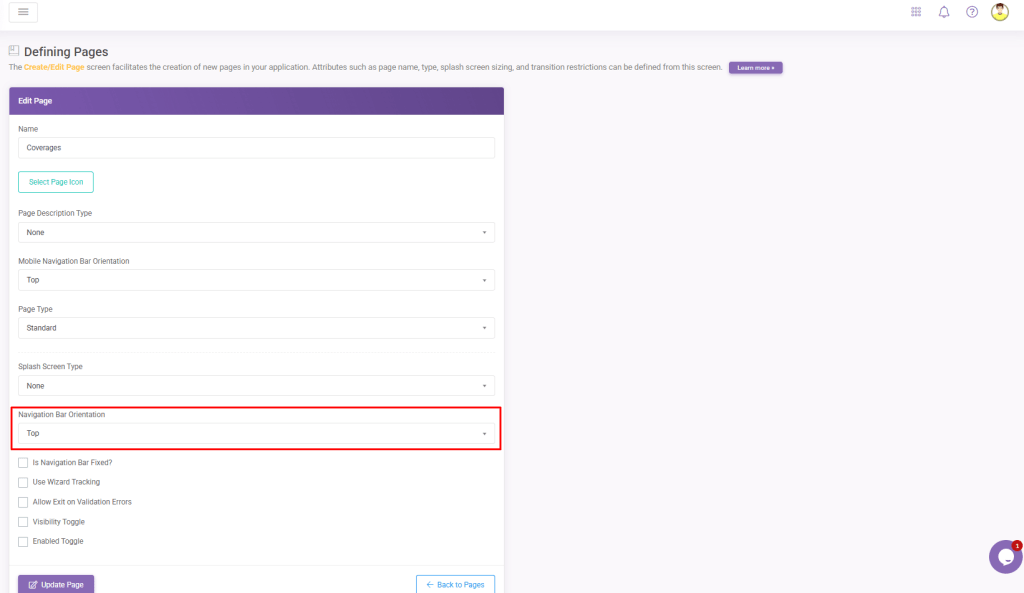
Navigation between applications can be done in two ways – action buttons and navigation menu. You can add a navigation menu to any pages in your web application from the Pages interface. Selecting Top or Left for the Navigation Bar Orientation will create the corresponding menu in those pages that users can interact with to transition between pages. Note that all pages that are visible to the end user will show on this menu.
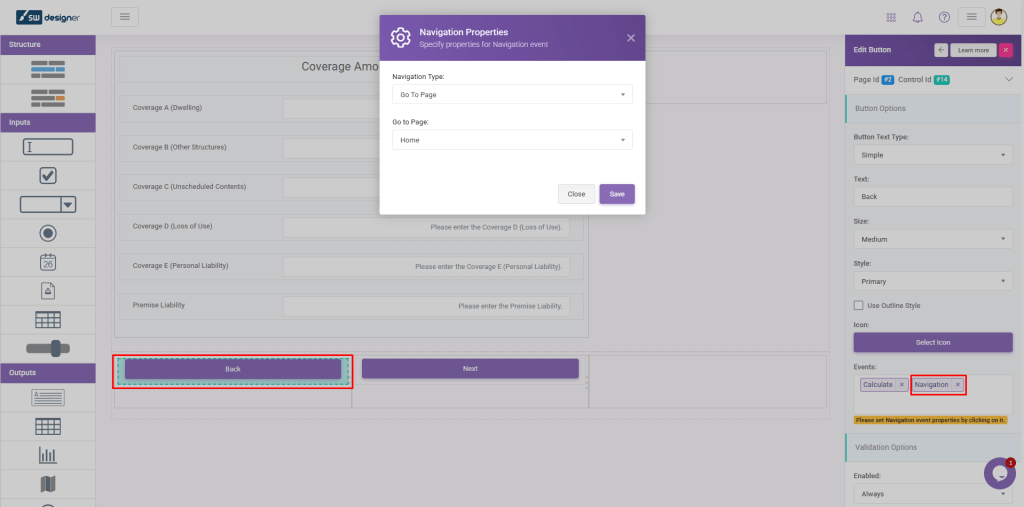
Action buttons can be assigned a Navigation event to transition the user to a specific page in your application. To do this, you must assign the Navigation event to a button, and then configure it by clicking the event.