
Custom Formulas
A custom formula in SpreadsheetWeb is a platform-provided, server-side function that you write directly in your Excel model (just like an Excel function)…
A custom formula in SpreadsheetWeb is a platform-provided, server-side function that you write directly in your Excel model (just like an Excel function) but which is evaluated only in the SpreadsheetWeb runtime after you publish the app. These formulas extend what plain Excel can do by letting your workbook pull data from your app’s database or other apps in your workspace, reference the signed-in user/session, and return dynamic (spillable) arrays to your sheets.
SpreadsheetWebRecordInfo
The SpreadsheetWEBRecordInfo formula allows pulling data from the active record into the underlying spreadsheet. The information type is determined by the FieldName parameter. This parameter should match the column name for that field in the database.
Syntax
=SpreadsheetWebRecordInfo(FieldName)
Predefined field names:
- Id
- EditId
- AssignedUserId
- AssignedUserName
- ActionUserId
- ActionUserName
- AssignedGroupId
- AssignedGroupName
- EntryDate
- LastUpdate
- StatusIndex
- StatusName
- Notes
Examples
To return the name of the owner of the active record:
=SpreadsheetWEBRecordInfo(“AssignedUserName”)
To return the date-time information for when the record was last updated:
=SpreadsheetWEBRecordInfo(“LastUpdate”)
SpreadsheetWebUserInfo
This function displays user information of an application. Information type is determined by the FieldName parameter. FieldName parameter should match the field name in the database.
Syntax
=SpreadsheetWebUserInfo(FieldName)
Predefined field names:
- UserName
- SiteId
- FirstName
- LastName
- Active
- Role
- Group
Examples
Please note that you need to use an opening quote mark on the beginning and the end (“Field”). For example,
To return the user’s first name:
=SpreadsheetWEBUserInfo(“FirstName”)
To return the user’s phone number:
=SpreadsheetWEBUserInfo(“Email”)
DBOpen
DBOpen creates a connection to the data source.
Syntax
=DBOpen(connection_string, pooling, output_range)
Argument Name | Type | Default | Description |
|---|---|---|---|
| connection_string | String | String that specifies a data source and the means for connecting to it. You can use 2 types of strings:
| |
| pooling | Boolean | TRUE | A logic value that enables or disables use of connection pool. A connection pool is a cache of database connections, maintained so that the connections can be reused, when required.[citation needed] Connection pools are used to enhance the performance of executing commands in a database. |
| output_range | String | “” | String value that specifies the cell reference for the result. If empty, the result returns in the host cell, as a regular function. e.g. “Sheet1!C3”, “My Connection Sheet!F25” |
Returns
Integer. Returns integer which is used by DBGet function to query database and set them to the application. If connection is not successful than the return value is 0.
Examples
Formula | Description |
|---|---|
DBOpen(SpreadsheetWEBConnectionString(),,) | Default and recommended use to connect an application in a SpreadsheetWEB system. Function returns a value to its own cell. Pooling is enabled. |
DBOpen(“Provider=SQLOLEDB; Data Source=localhost; Initial Catalog=Northwind; Integrated Security=SSPI”,,) | Default and recommended use to connect an external database. Function returns a value to its own cell. Pooling is enabled. |
=DBOpen(“Provider=SQLOLEDB; Data Source=localhost; Initial Catalog=Northwind; Integrated Security=SSPI”,FALSE,) | Function returns a value to the original cell. Pooling is disabled. |
=DBOpen(“Provider=SQLOLEDB; Data Source=localhost; Initial Catalog=Northwind; Integrated Security=SSPI”,,”Sheet1!C4″) | Function returns a value to the specified string. Pooling is enabled. Please note that cell reference is given as string, NOT as an Excel cell reference. |
=DBOpen(“Provider=SQLOLEDB; Data Source=localhost; Initial Catalog=Northwind; Integrated Security=SSPI”,FALSE,”Sheet1!C4″) | Function returns a value to the specified string. Pooling is disabled. |
DBGet
DBGet executes a select query against the DBOpen connected data source. If the query was successfully executed; the function will populate a two dimensional result to a range, defined as the third parameter of the function.
Syntax
=DBGet(dbopen_result, query_string, output_range, [single_cell])
Argument Name | Type | Default | Description |
|---|---|---|---|
| dbopen_result | Reference | Cell reference of DBOpen’s output range. Use DBOpen in its default form(connection_string,,). | |
| query_string | String | SQL query string. Please note that DBGet queries are limited to SELECT statement. | |
| output_range | String | String value that specifies the cell for the result to be populated. e.g. “Sheet1!C3:G10”, “My Connection Sheet!F25:T42” | |
| single_cell | Boolean | FALSE | (Optional) Set TRUE to get query result as a single string in JSON format. Result is written in first cell of output_range. JSON format can be used directly in Custom Web Page via JavaScript as well as providing performance improvement. |
Returns
Integer. Returns 0 the original cell.
Array. Returns query results as an array and sets them to a specified range if single_cell argument is FALSE.
String. Returns JSON string if single_cell argument is TRUE.
Examples
Formula | Description |
|---|---|
=DBGet(A2, “SELECT * FROM Customers”, “Sheet1!C3:D10”) | Uses the connection defined on A2 (DBOpen’s output cell) and places the results on the C3:D10 range, in Sheet1. |
=DBGet(A2, “SELECT * FROM Customers”, “Sheet1!C3:D10”, TRUE) | Uses the connection defined on A2 (DBOpen’s output cell) and places the result on the C3 cell, in Sheet1. Result is in JSON string format. |
DBConnect
DbConnect is a custom SpreadsheetWEB Hub function used for database calls. The formula allows the application to connect an external database or a SpreadsheetWEB Hub application’s database and return values to specified range reference.
For simpler type of queries, we suggest you check out Queries feature. The Queries feature allows you to retrieve data from applications in your workspace by using an intuitive user interface: Queries
Note: DbConnect function is only supported in SpreadsheetWeb Hub Private Cloud and Server accounts.
Syntax
DbConnect(connection_string, query, output_range)
| Argument Name | Type | Required? | Description |
|---|---|---|---|
| connection_string | String | Optional | String that specifies a data source and the means for connecting to it. You can omit this argument if you wanted to work on application’s own database. By default only current server, localhost, SQLEXPRESS are allowed. Please contact to change privileges. |
| query | String | Required | SQL query string. Only SELECT statement is accepted by default, Please contact to change privileges.
|
| output_range | String | Required | String value that specifies the reference for the result to be populated. The reference can be a regular cell or range reference or a named range. e.g.,
|
Stubs in queries
DbConnect function has a stub support which allows user to use table names directly instead of auto-generated names in the database.
A table name is the friendly name you use in the Designer application.
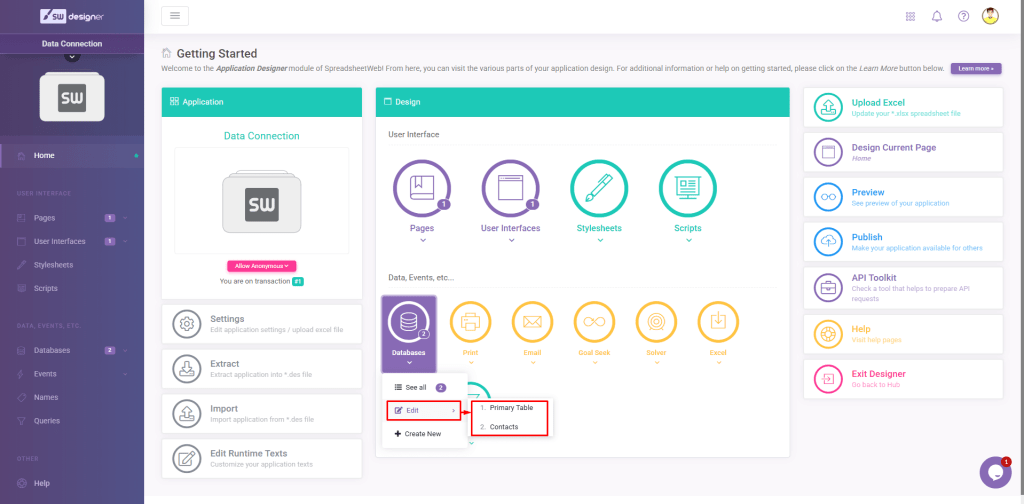
Names should be supplied between square and curly brackets. E.g., [{Primary Table}] or [{Contacts}].
Sample use case to return “Name” column in the “Primary Table”:
DbConnect( "SELECT TOP 1 [Name] FROM [{Primary Table}] ORDER BY [CreationDate] DESC", "Sheet1!B6")
The result will be populated in the cell B6 of Sheet1.
Warning: Stubs can be used only when accessing the application’s own database.
Predefined Stubs
DbConnect also supports stubs for auto-generated tables which keep the metadata of records. Each of the following tables share Id, EditId and SequenceId columns along with the primary and secondary tables to be related easily.
- Details: ActionUserId, ActionClientId, EntryDate, Notes
- Tags: TagId, TagName
- Overrides: Overrides
Examples
Get active data from the primary table of application database
- **Primary Table: “**Pri”
- Return range: “‘Historical Data’!A2:C10”
DbConnect( "SELECT [Client Name], [State], [Salary] FROM [{Pri}] WHERE IsActive = 1", "'Historical Data'!A2:C10")
Return the number of active records entered after Sept. 9, 2022
- **Primary Table: “**Sales”
- Details Table: “Details” (Predefined table)
- Return range: “RecentRates”
DbConnect( "SELECT COUNT(*) FROM [{Sales}] a INNER JOIN [{Details}] b ON a.id = b.id WHERE b.EntryDate > '2022-09-01' AND a.IsActive = 1", "RecentRates")
Get “total Cost” value in active records with tag “Waiting Order”
- **Primary Table: “**Orders”
- Secondary Table: “OrderItems”
- Tags Table: “Tags” (Predefined table)
- Return range: “WaitingOrders”
DbConnect( "SELECT [Order].OrderId, SUM([OrderItems].Cost) FROM (([{Order}] AS [Order] INNER JOIN [{OrderItems}] AS [OrderItems] ON ( [Order].Id = [OrderItems].Id AND [Order].EditId = [OrderItems].EditId )) INNER JOIN [{Tags}] AS [Tags] ON ( [Order].Id = [Tags].Id AND [Order].EditId = [Tags].EditId )) WHERE ( [Order].[IsActive] = 1 AND [Tags].TagName = "Waiting Order" ) GROUP BY [Order].OrderId", "WaitingOrders")
Get data from an external database (not allowed in private servers)
- Connection String: “Data Source=.\SQLEXPRESS;Initial Catalog=MyDb;User ID=username;Password=pass;” (You can give a direct cell reference or name)
- Return range: “EmployeeTable”
DbConnect( "Data Source=.\SQLEXPRESS;Initial Catalog=MyDb;User ID=username;Password=pass;", "SELECT [Id],[Name],[Occupation] FROM [Employee]", "EmployeeTable")
SpreadsheetWebLookup
SpreadsheetWebLookup retrieves rows from a named range bound to a SpreadsheetWeb application’s database within the same workspace.
Syntax
=SpreadsheetWebLookup(applicationID, recordID, namedrange)
Argument Name | Type | Default | Description |
|---|---|---|---|
| applicationID | String | String that specifies the application ID | |
| recordID | Integer | Integer that specifies the record ID | |
| namedrange | String | String value that specifies the named range that matches the database reference |