
Creatio Applications
Most businesses use Excel spreadsheets to build applications and automate various business processes. Process Management and CRM software Creatio can…
Most businesses use Excel spreadsheets to build applications and automate various business processes. Process Management and CRM software Creatio can monitor user activity and perform certain actions to automate repetitive tasks such as data entry and management. With our Creatio integration, you can embed complex logic into your Creatio processes such as financial models, engineering calculations, rules engines with cascading IF-THEN-ELSE formulas, etc. You can map inputs and outputs from your workbook and use them inside Creatio for creating conditional parameters or use them in other operations. To use this integration, you will need a Creatio account and a SpreadsheetWeb account. If you are just evaluating, you can signup for a free 14-day SpreadsheetWeb trial account here. Let’s get started.
Installing and Configuring the Creatio Integration
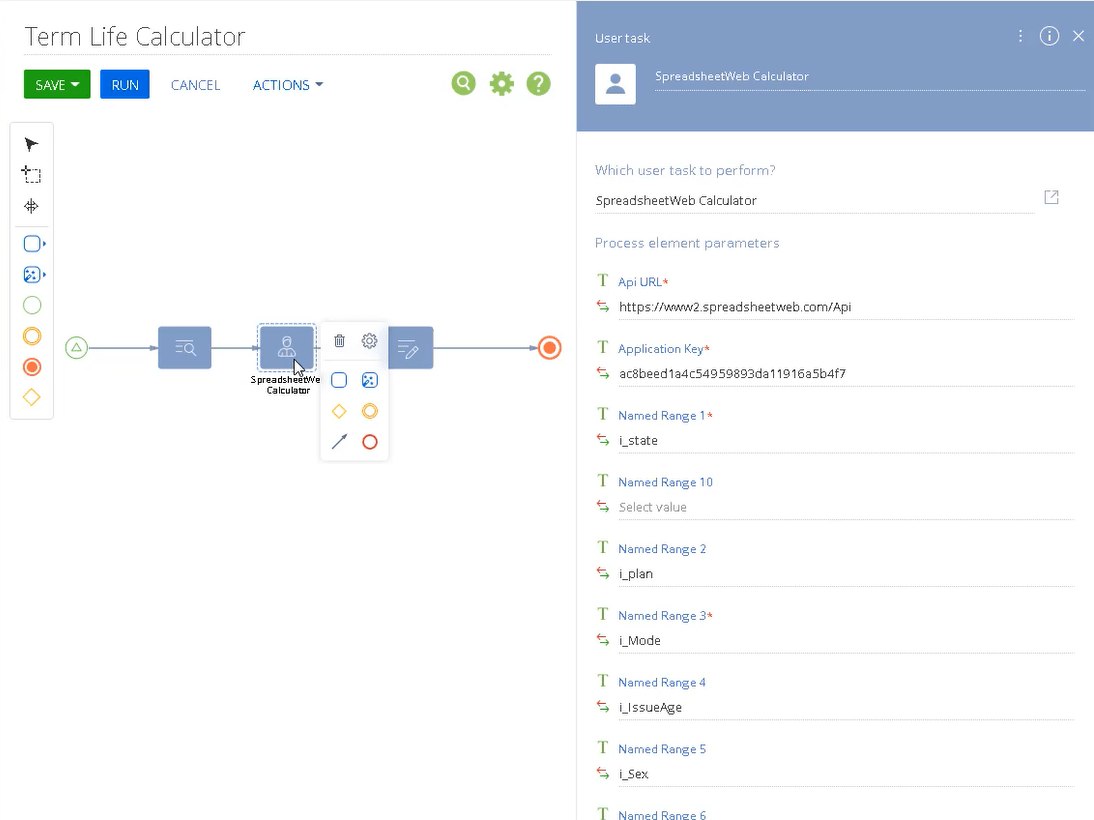
Go to your Creatio project, and select User task from the system actions list. Drag and drop the module into the process.
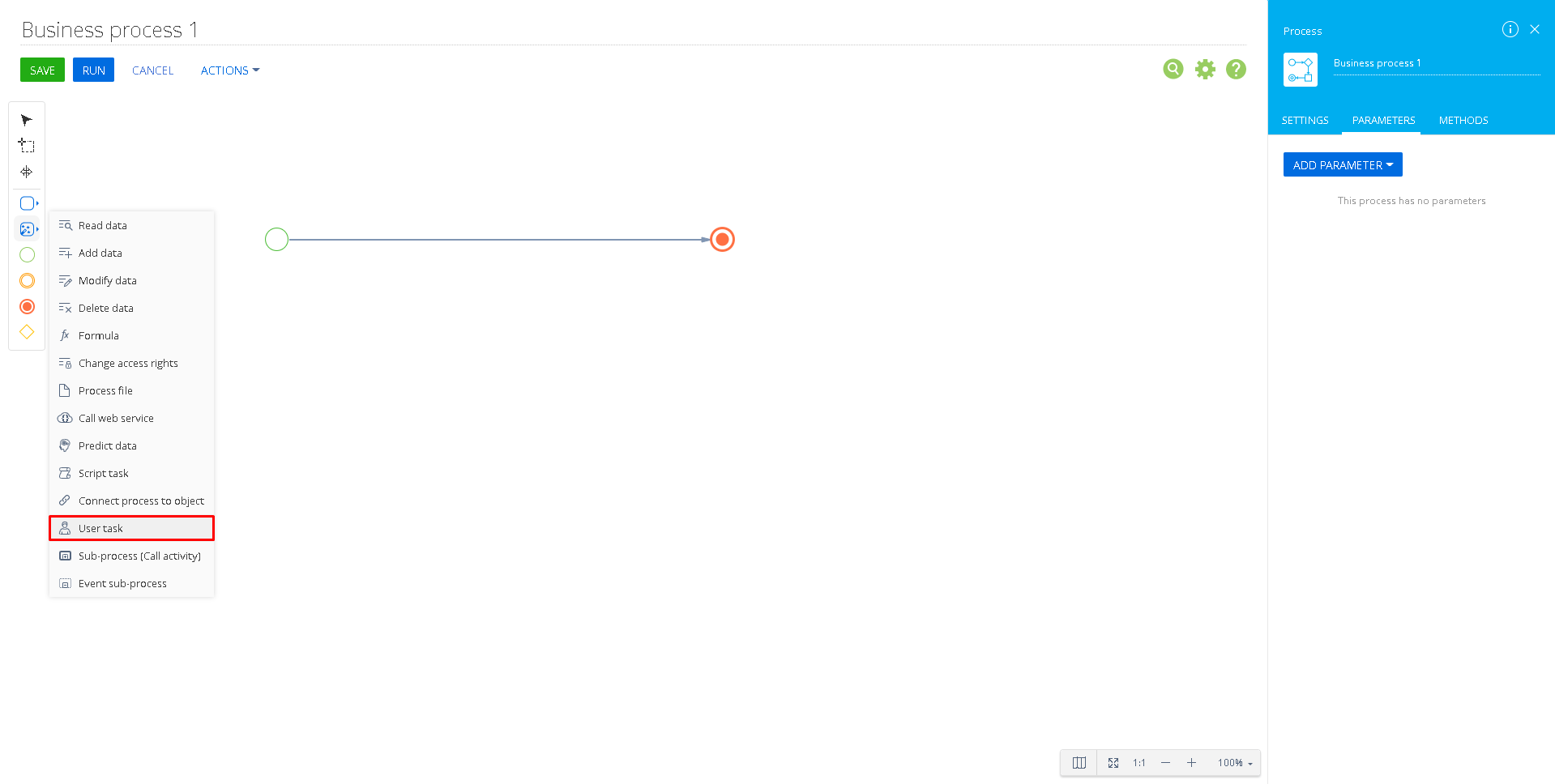
Search for “Spreadsheetweb Calculator” under the “Which user task to perform?” menu and select it.
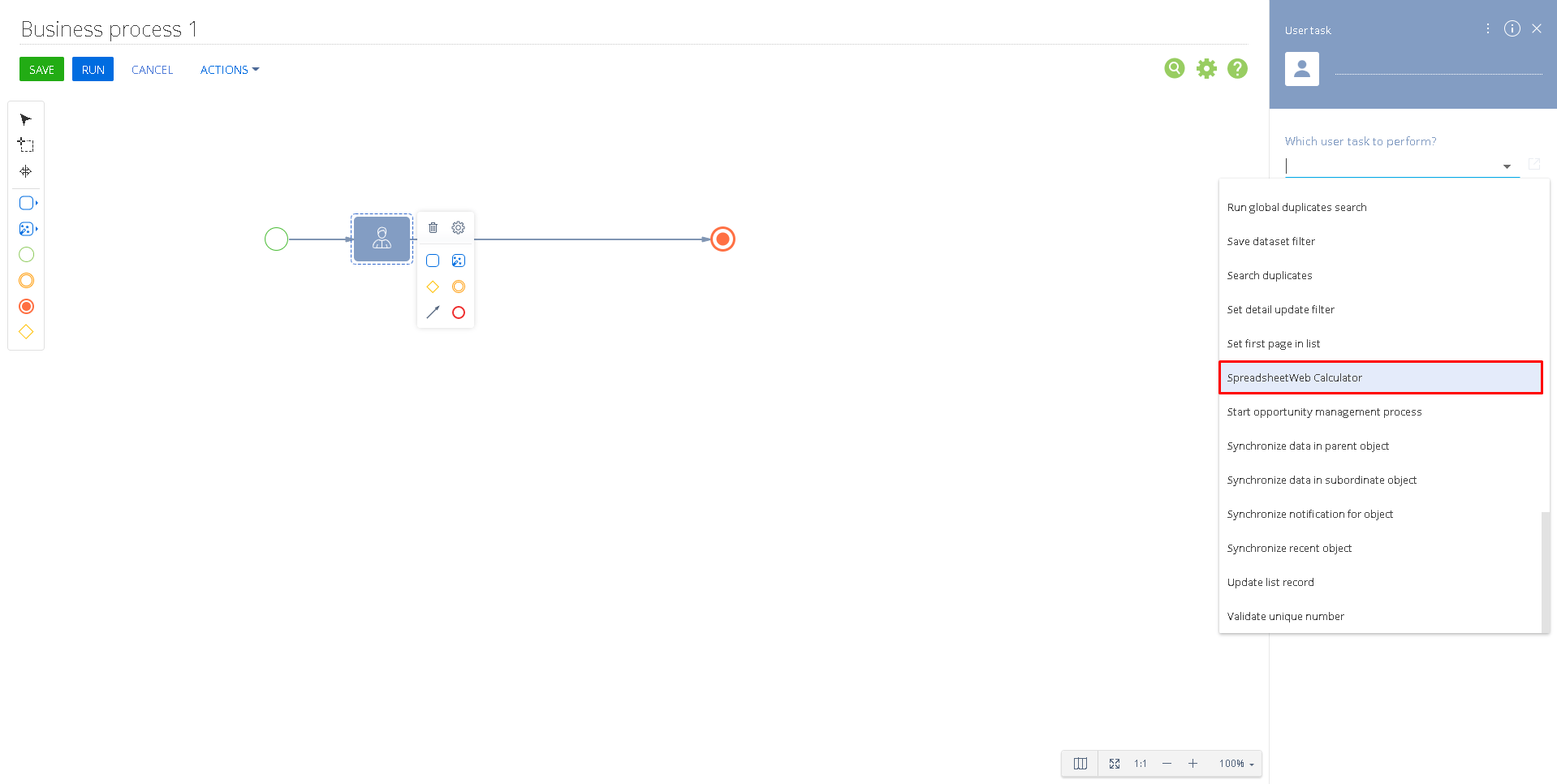
Once added, select the SpreadsheetWeb Calculator to configure it.
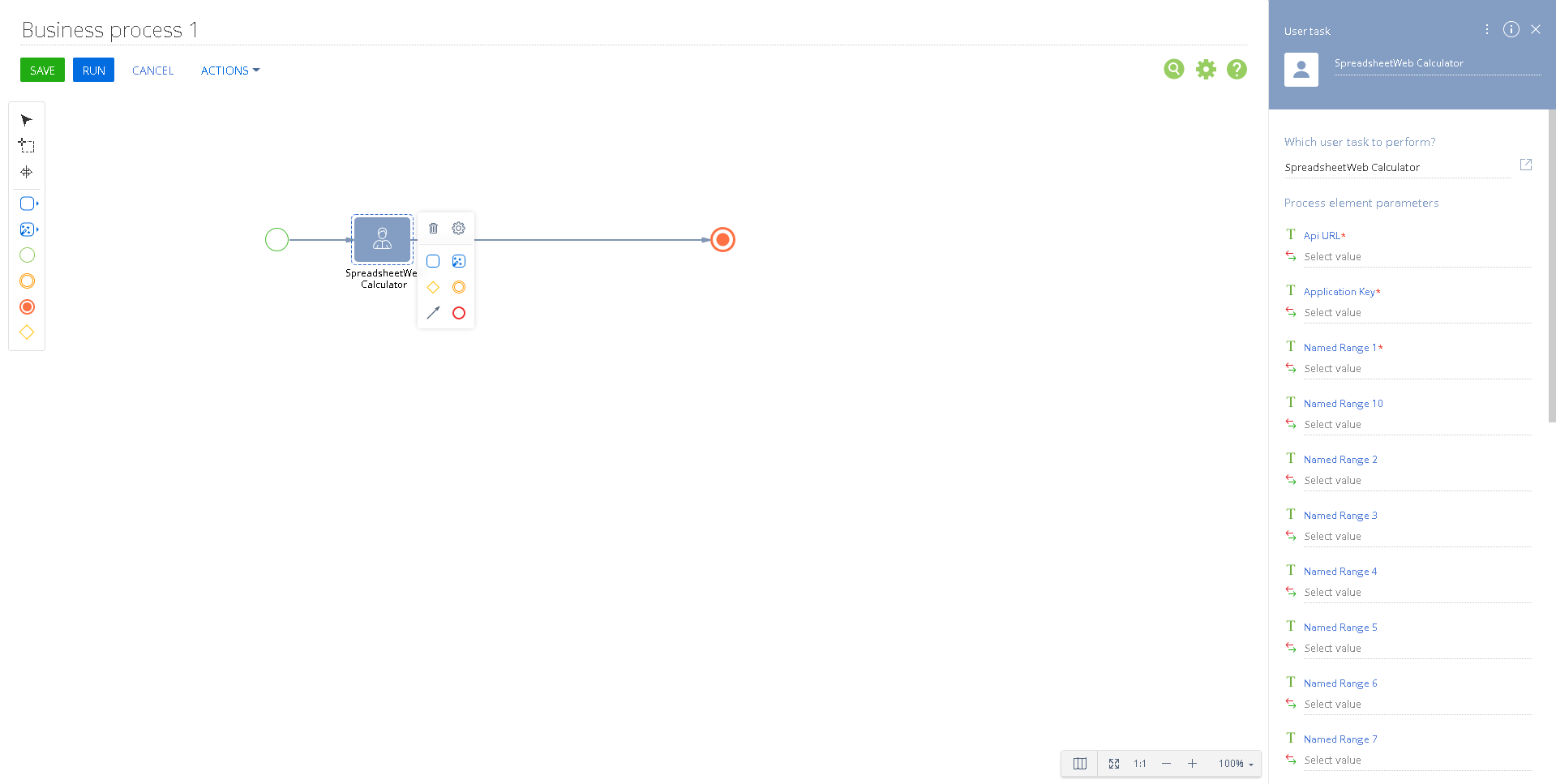
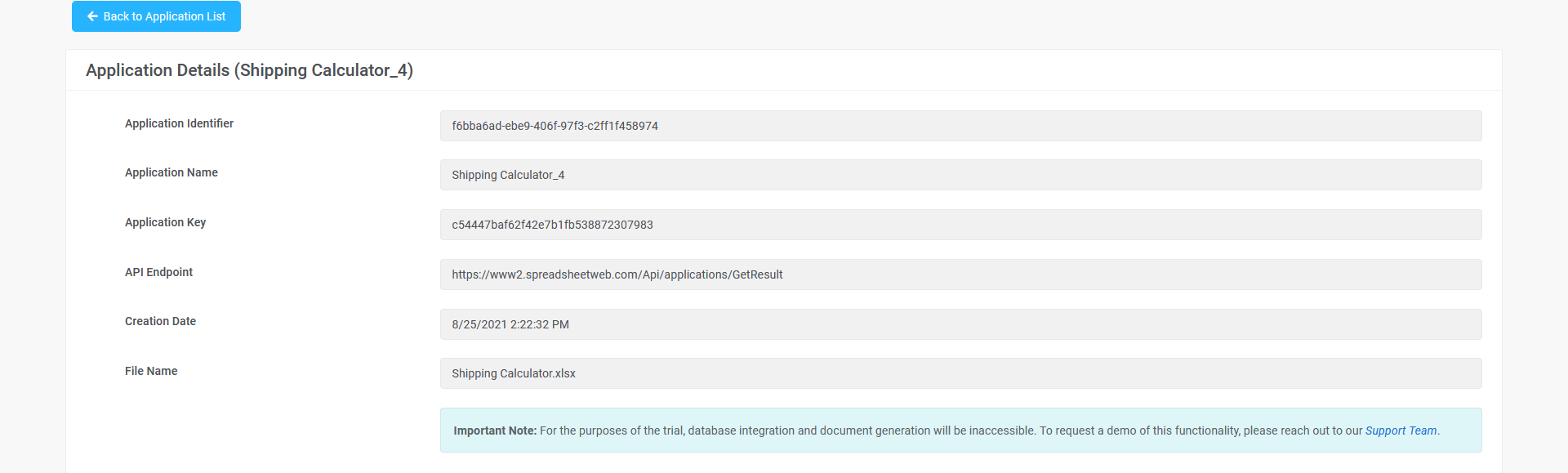
Copy your API URL and Application Key from the SpreadsheetWeb Web Service application into the corresponding fields in the module. You can find this information by pressing the blue Edit Application button on the Control Panel if you have a paid SpreadsheetWeb account.
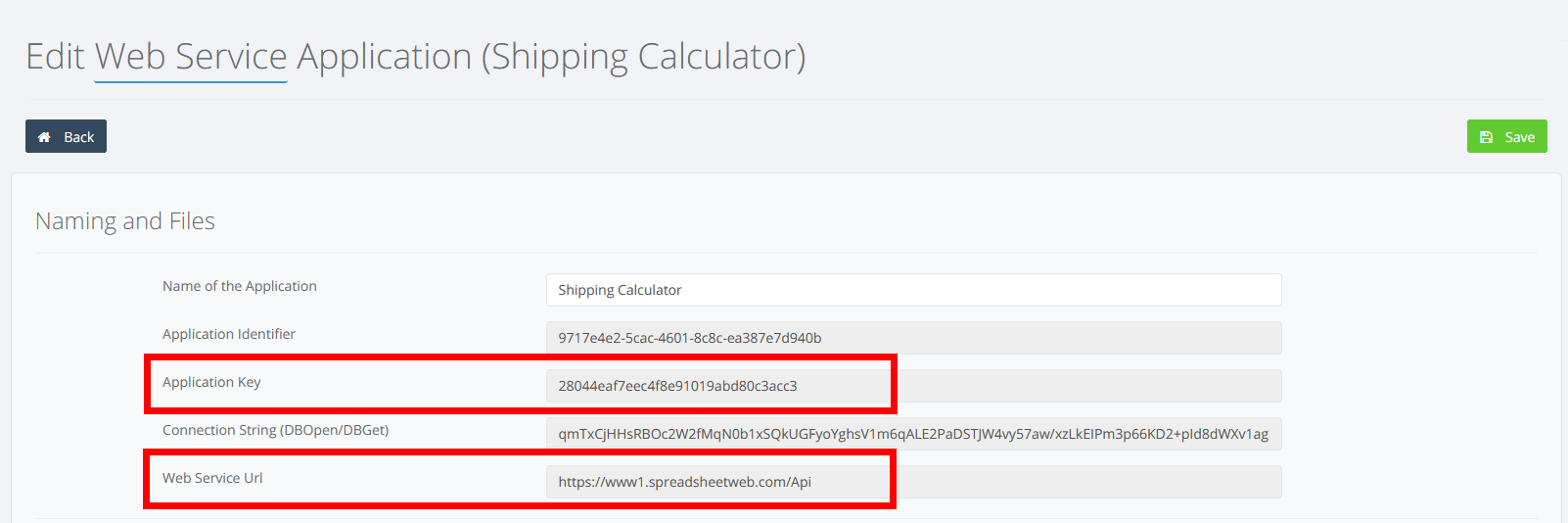
If you have a trial account, you can find the Application Key by pressing Launch if using an Access API application. In Designer applications, this field is called Web Service Key and it can be accessed by pressing the Edit button. Use “https://www2.spreadsheetweb.com/Api”; for the API URL in Access API and Designer applications.
Add input and output mappings into the SpreadsheetWeb Calculator module by entering the named ranges corresponding to their counterparts in the SpreadsheetWeb application. The workbook named ranges are case-sensitive and must be an exact match. The fields with red asterisk next to them are required – you must add at least one input and one output field in addition to the Api URL and Application Key.
Run your process and get the results in Creatio.
How to test your Creatio – SpreadsheetWeb integration
If you don’t have a SpreadsheetWeb account, you can still test it from Creatio. Make sure to install our integration as described above and follow the steps below:
- Add a SpreadsheetWeb Calculator and set the following variables:
- API Url: https://www2.spreadsheetweb.com/Api
- Application Key: YOUR_APPLICATION_KEY
- Create the following variables: OriginZip, DestinationZip, weight.
- Set any zip code value (5-digit integer) to OriginZip and DestinationZIP. Also set an integer between 0 and 100 as weight.
- Save and Run the automation.
- View the value of the variable “cost” and confirm that it is updated.