
Email Process
Configure SpreadsheetWeb Email Processes, add dynamic content and attachments, and share saved records with expiring public View or Edit links.
Email Processes send predefined emails when they are triggered by an action in a SpreadsheetWeb application. An email can include static content, application values, attachments, and a public link to the saved record that triggered the process.
Email Processes are created in Designer and then assigned to an Action button or another supported trigger in the application interface.
Create an Email Process
- Open the application in SpreadsheetWeb Designer.
- Expand Events in the sidebar and open Email Processes.
- Select Add Email Process.
- Configure the process fields and select Create Email.
Configure the email
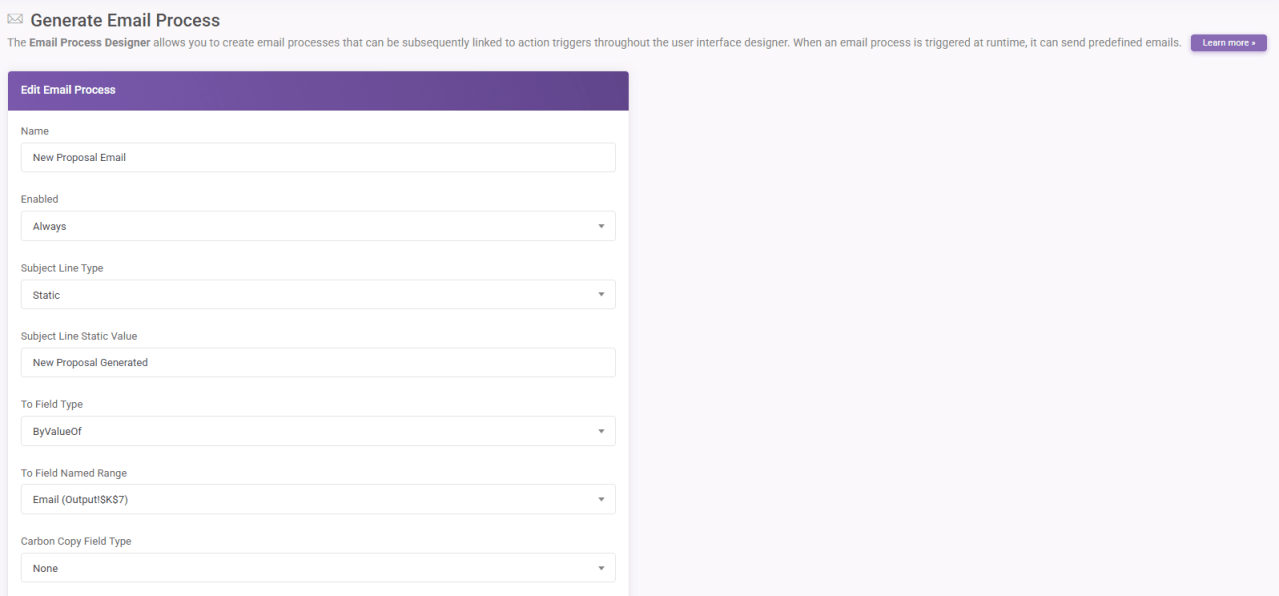
Name and enabled state
Enter a friendly Name that identifies the process in Designer. The name is not shown to email recipients.
Use Enabled to control when the process can run:
- Always keeps the process enabled.
- Never disables the process.
- By Value Of determines the enabled state from an application value.
Subject and recipients
The subject and recipient fields can use static values or application values.
- Subject Line Type can be Static or ByValueOf.
- To Field Type can use a static recipient or a value from the application.
- Carbon Copy Field Type and Blind Carbon Copy Field Type can be None, Static, or ByValueOf.
When using application values for recipients, confirm that the selected value returns a valid email address at runtime.
Email body
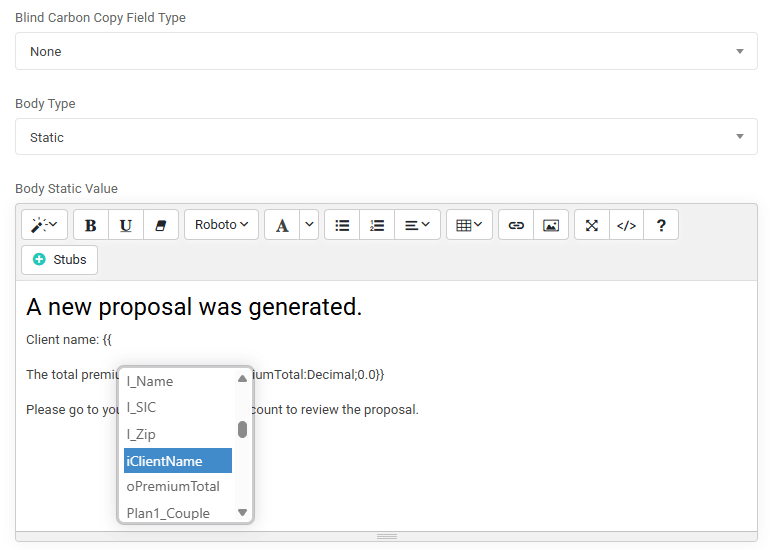
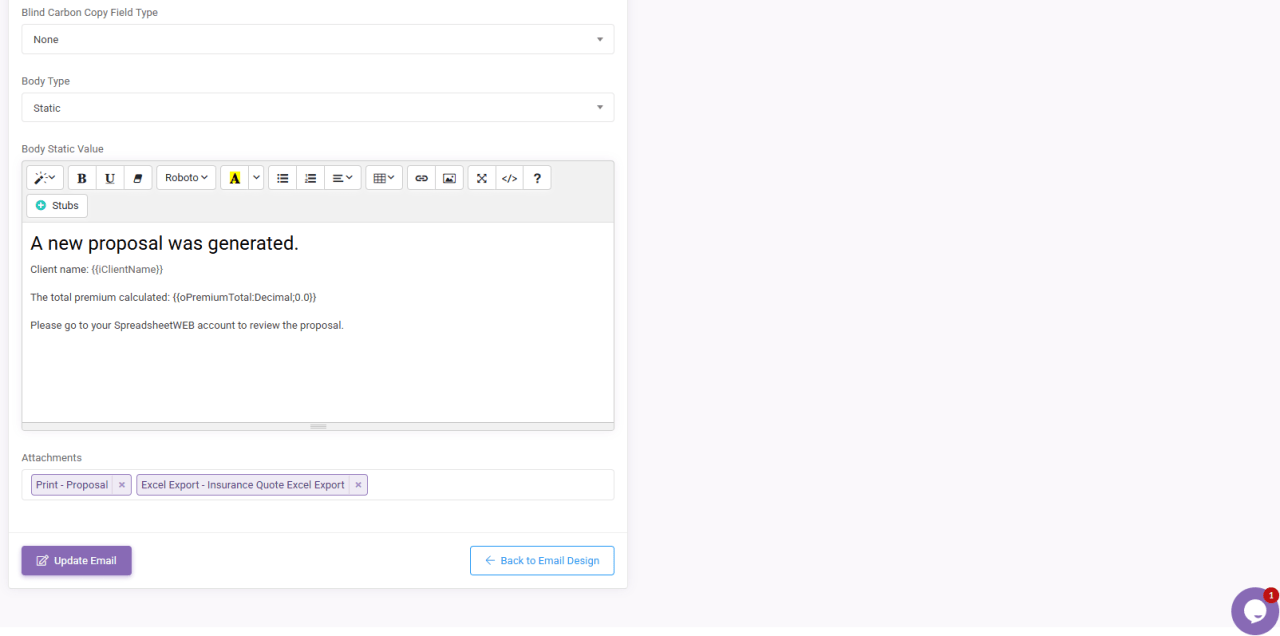
Select Static for Body Type to compose the message with the rich text editor. The editor supports formatting, links, images, tables, application stubs, and saved-record share links. Select Stubs to insert supported application values into the message.
Attachments
Use Attachments to include output from supported Print, Excel Export, or File Upload processes. The available items depend on the processes and controls configured in the application.
Share a saved record from an Email Process
Email Processes can generate a public link for the saved record that triggers the email. The recipient can open the linked record directly without signing in to SpreadsheetWeb.
Availability: The Share Link button is available only when the application has its database enabled and its access type is set to Anonymous.
The public link provides access to the specific saved record associated with the email. It does not provide access to the application’s other saved records.
Insert the saved-record link
- Set Body Type to Static.
- Place the cursor where the link should appear in the email body.
- Select Share Link from the editor toolbar.
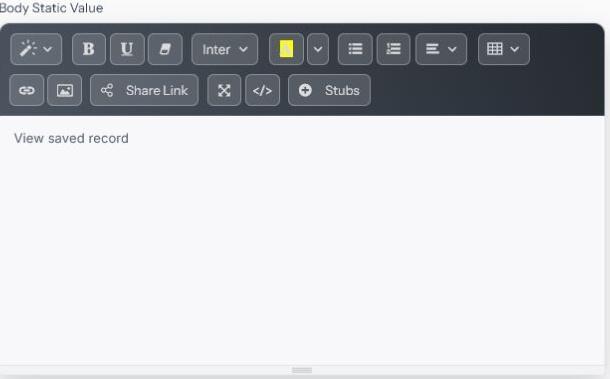
- Enter the text recipients will see in Link Text.
- Choose the Action Type:
- View opens the shared record for viewing.
- Edit opens the shared record in edit mode.
- Set Expires After and choose Hours, Days, Weeks, or Months. The maximum expiration period is 12 months.
- Select Insert Link.
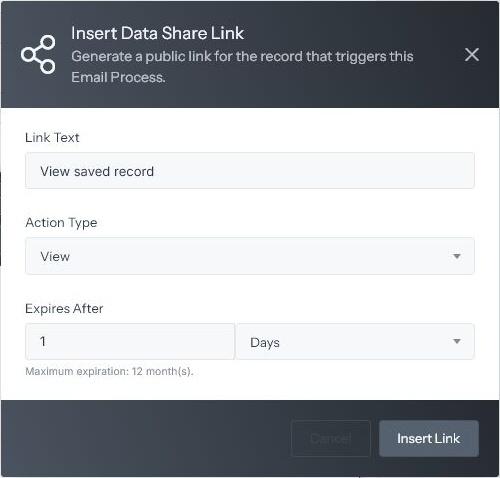
The editor displays the configured link text as a placeholder link. When the Email Process runs, SpreadsheetWeb generates the public URL for the current saved record and includes it in the outgoing email.
Share link considerations
- The Email Process must run with a saved database record available as the current record.
- The recipient does not need a SpreadsheetWeb account.
- The link stops working after its configured expiration time.
- Anyone who receives the public link can access the shared record according to its View or Edit action type until the link expires. Send the email only to intended recipients.
Connect the Email Process to an action
- Select Create Email after configuring the process.
- Open the page that contains the Action button that should send the email.
- Select the Action button and open its event settings.
- Assign the Email Process to the appropriate trigger.
- Save the Action button and application changes.
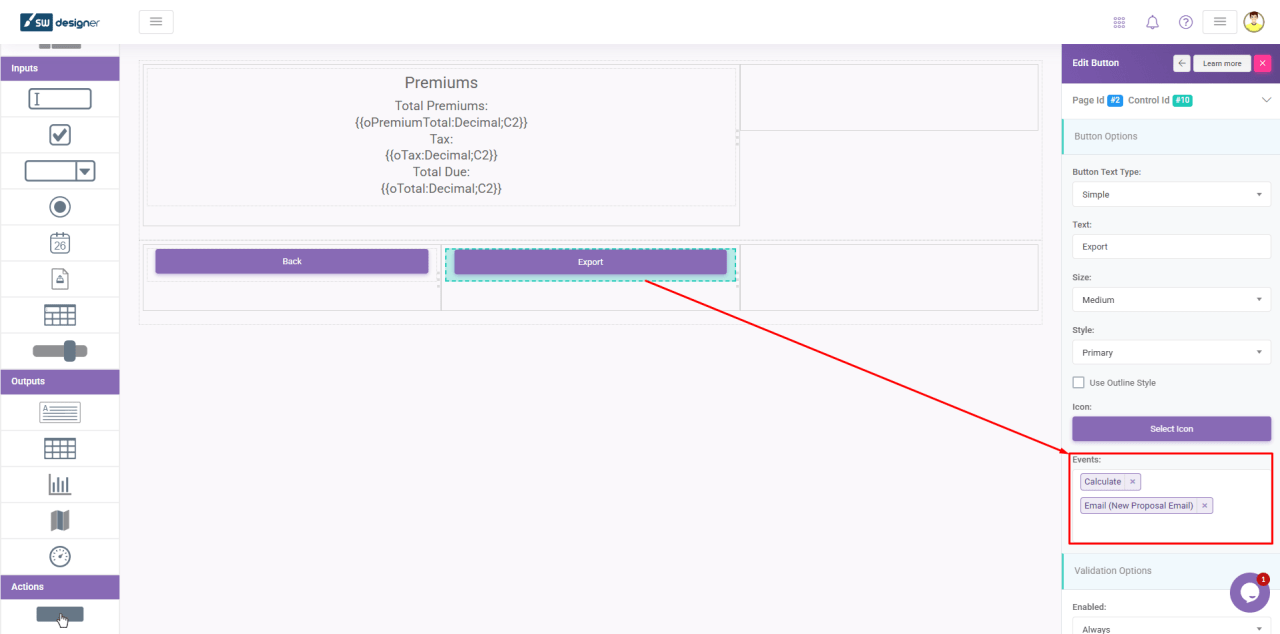
At runtime, the assigned action runs the Email Process and sends the configured message, dynamic values, attachments, and saved-record link.
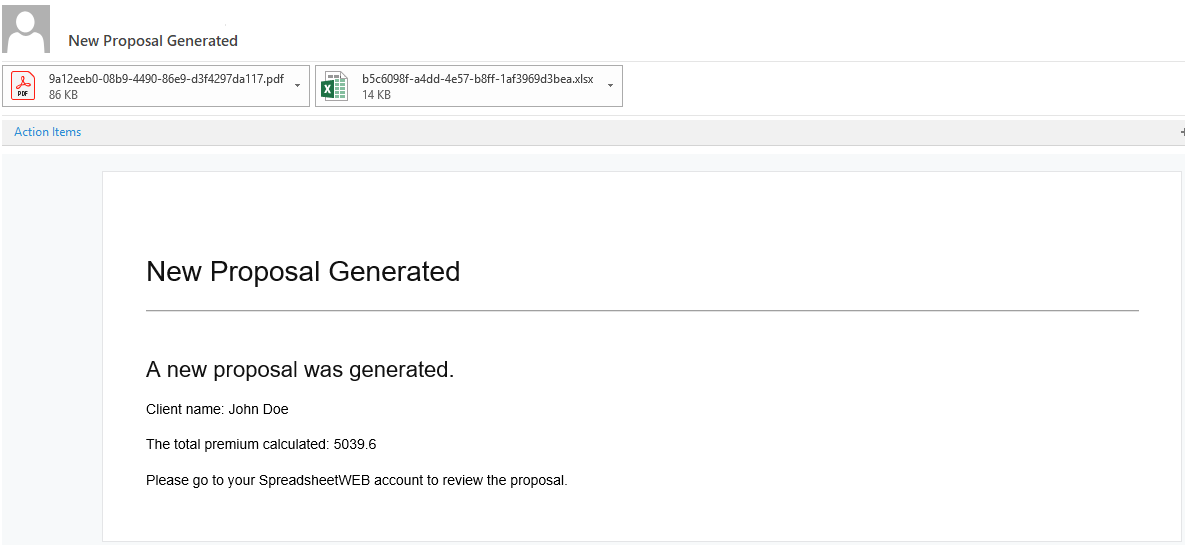
For an overview of this feature and other changes in the release, see What’s New in SpreadsheetWeb: July 2026.